Policies
In order to enable snapshot management for VM, you need to do the following steps:
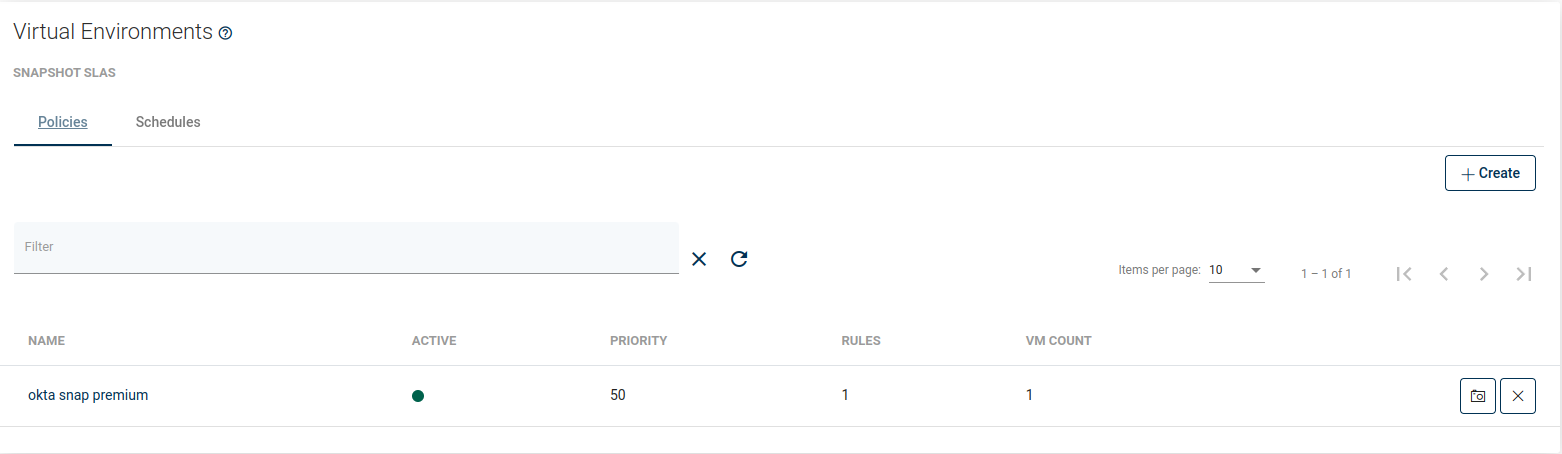
Go to Snapshot SLAs under the Virtual Environment section and create a new Snapshot Management policy 
As well as other types of Policies, you'll also find 4 main sections here.
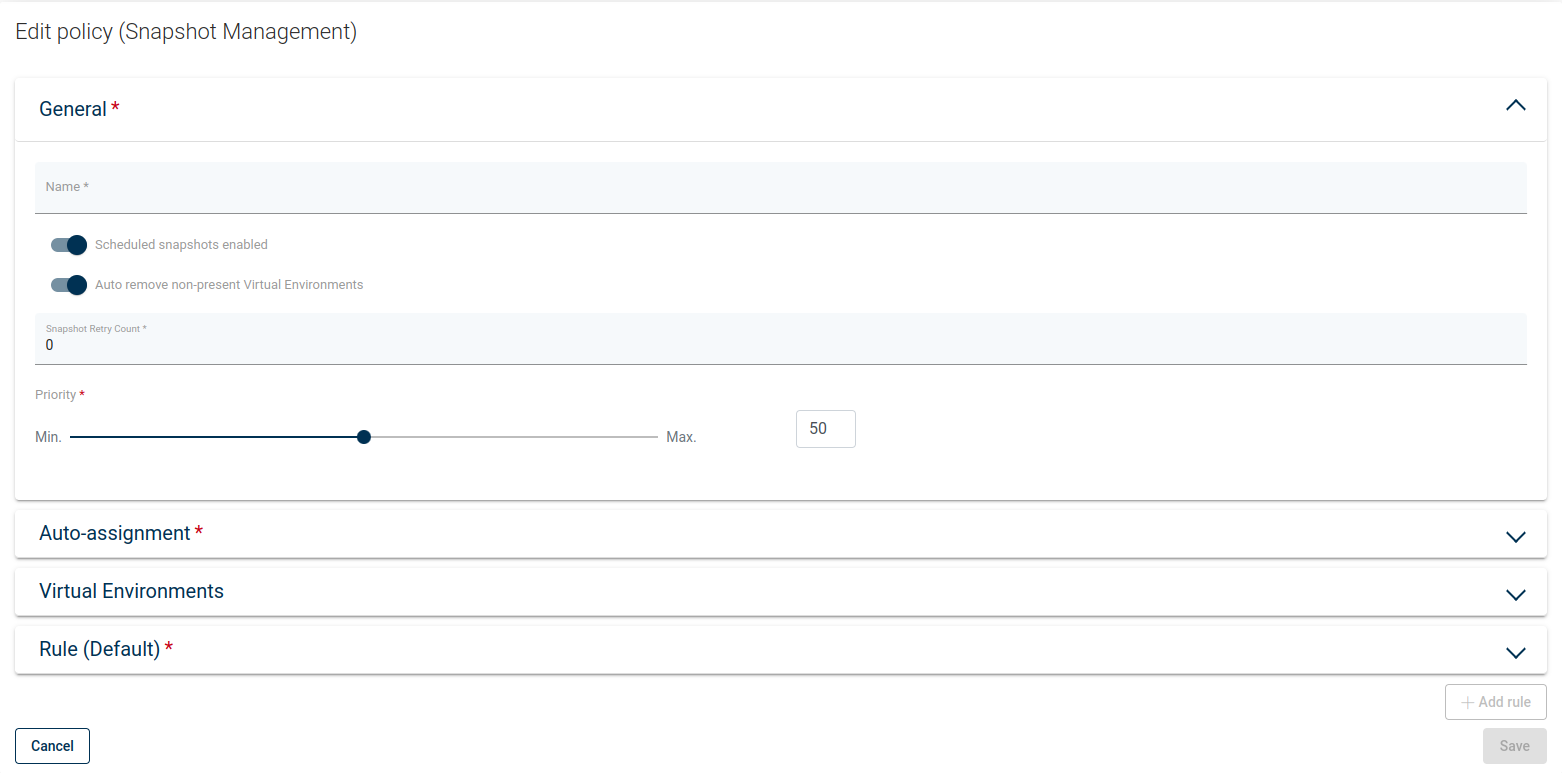
General
Under this section, you can set up:
- Name of policy
- Switch on/off for auto remove non-present virtual environments
- Set priority for tasks
Auto-assignment
In this section, you can set up:
- Mode
- Disabled
- Assign only
- Assign and remove
- Include or exclude rules based on hypervisor tag's or regular expression matching VM name:
- regular expression examples:
.*match any character any number of timesvm-[0-9][0-9][0-9]- match the name that starts withvm-and 3 digits(prod|uat|dev)-[0-9][0-9][0-9][a-z]?- match the name that starts withprodoruatordevprefix, then-, then 3 digits and optional lower-case letter (matching is case-sensitive)
- exclude rules always take precedence over include rules
- VMs may not be reassigned to the different policies if they already have a matching policy assigned
- VMs may be reassigned to the different policy only if the mode is
Assign and remove, current policy assignment rules don't match, and other's policy rules match - rules are joined with OR operator, so
- if any rule (tag or matched regular expression) excludes VM - it will be excluded
- if no rule (tag or matched regular expression) excludes VM, and any rule (tag or matched regular expression) includes VM - it will be included
- regular expression examples:
- You can also select clusters to match only VMs that belong to them
Virtual Environments
In this place, you can select virtual machines manually in a simple way.
Rule
Provide retention settings - how many snapshots (created by this policy) will be kept and for how long. If you have already created a schedule, you can also select it.
Note.
You can also perform the same action thanks to the CLI interface: CLI Reference.