Huawei OceanProtect
Create DataTurbo user
-
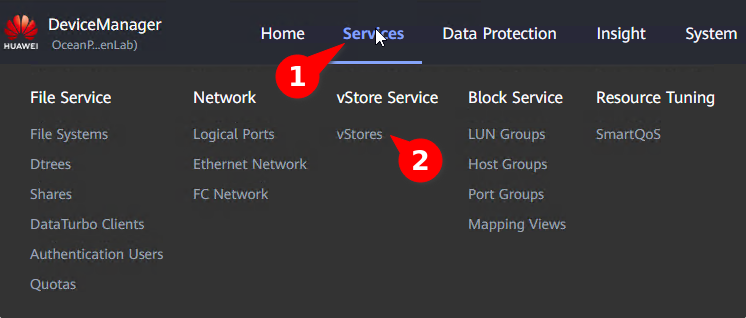
Go to Services -> vStore Service -> vStores
-
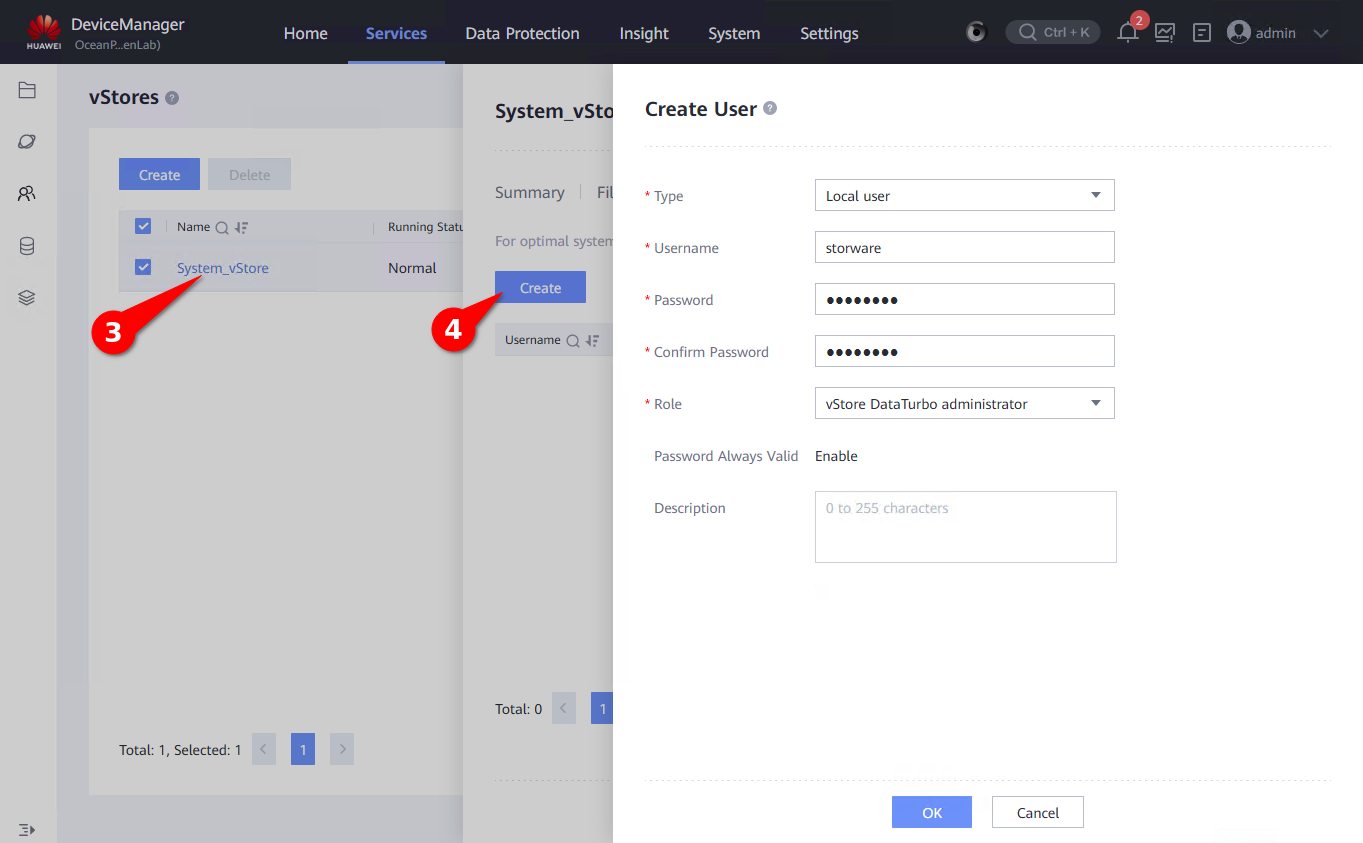
Select vStore -> Create new user with role "vStore DataTurbo administrator"
Create logical port
-
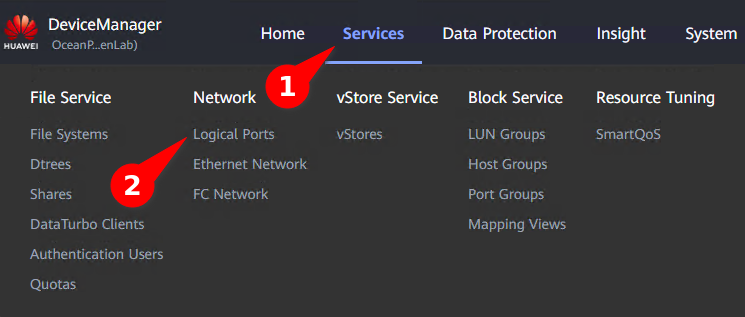
Go to Services -> Network -> Logical Ports
-
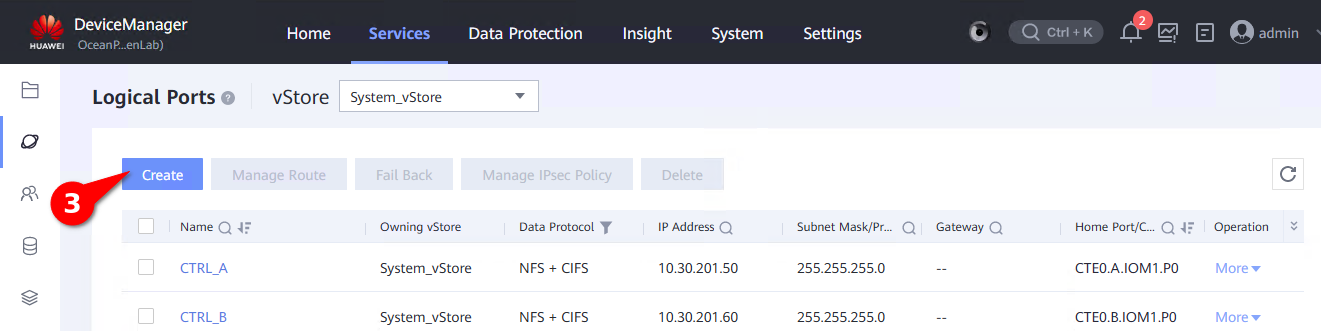
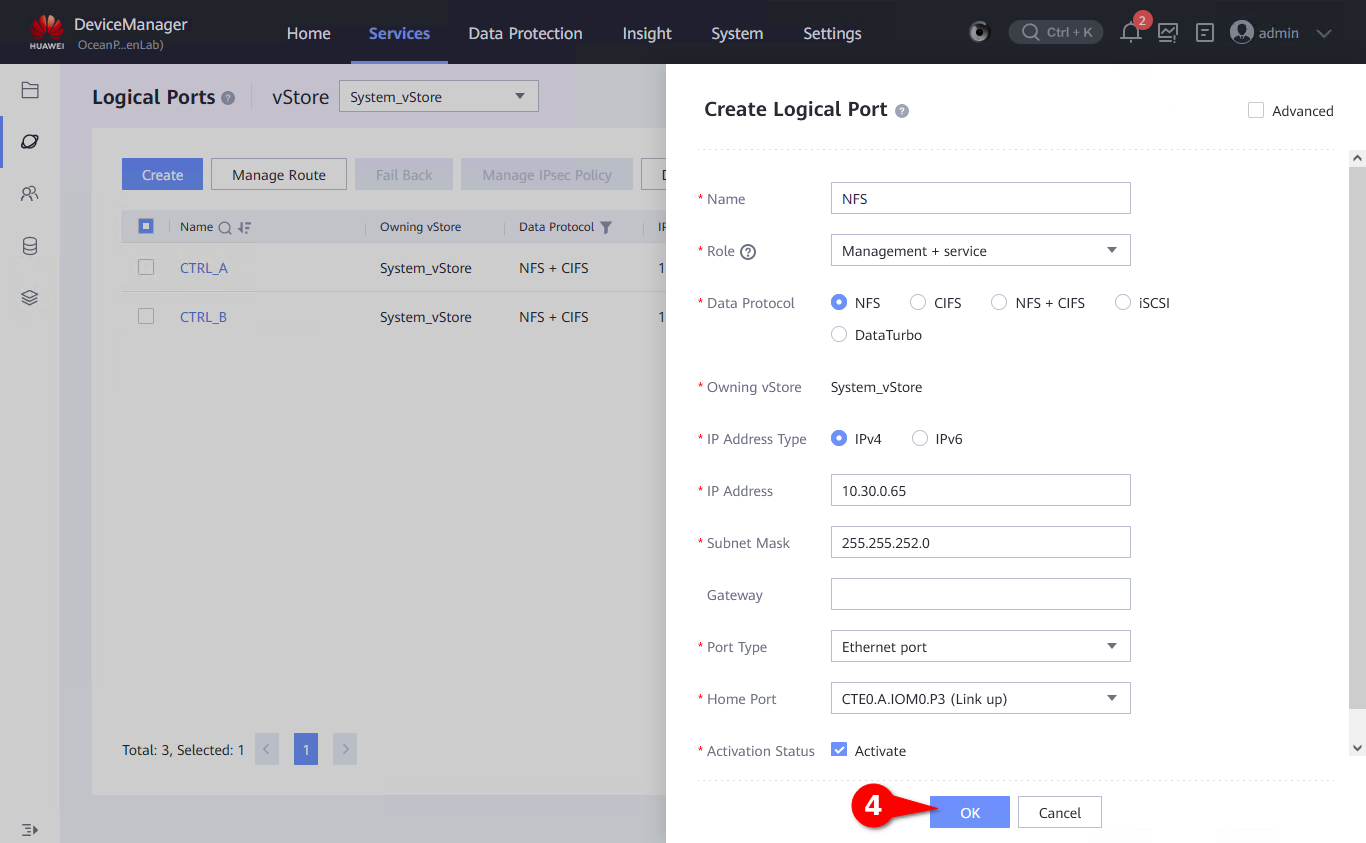
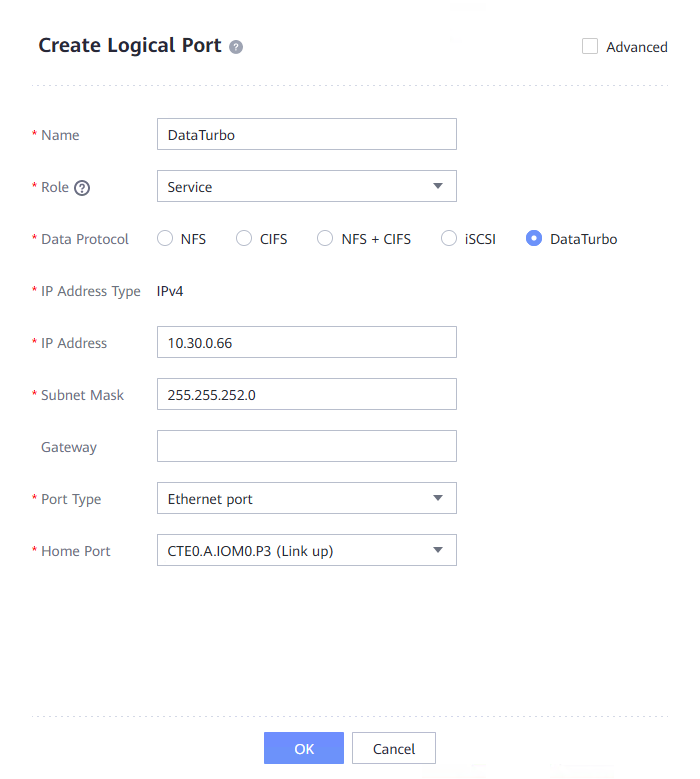
Create new logical port
-
Settings for NFS
-
Settings for DataTurbo
Create Filesystem
-
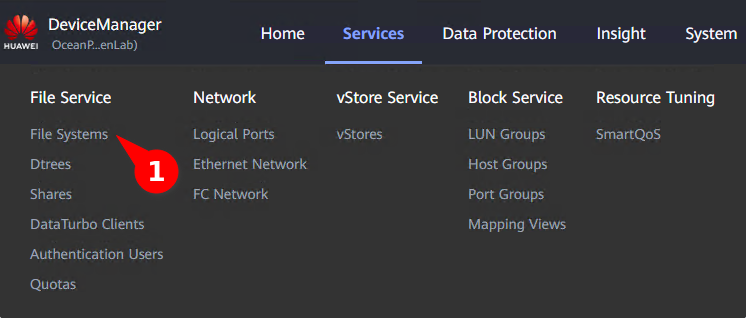
Go to Services -> File Service -> File Systems
-
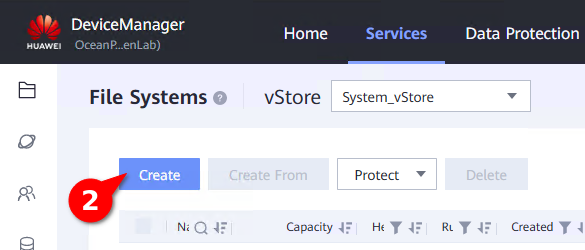
Create new file system
- Fill:
- Name
- Capacity
- Application Type
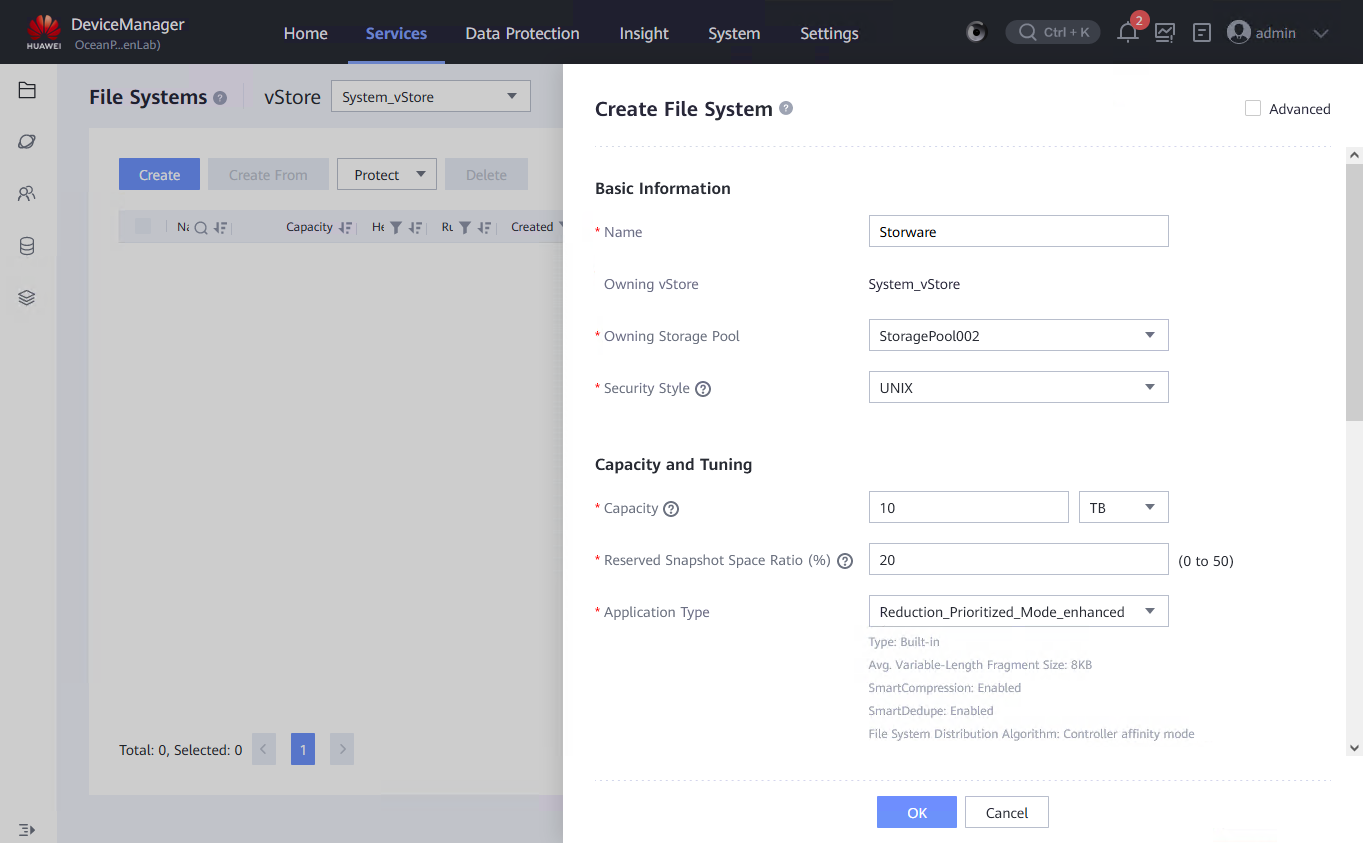
- With NFS, and DataTurbo share
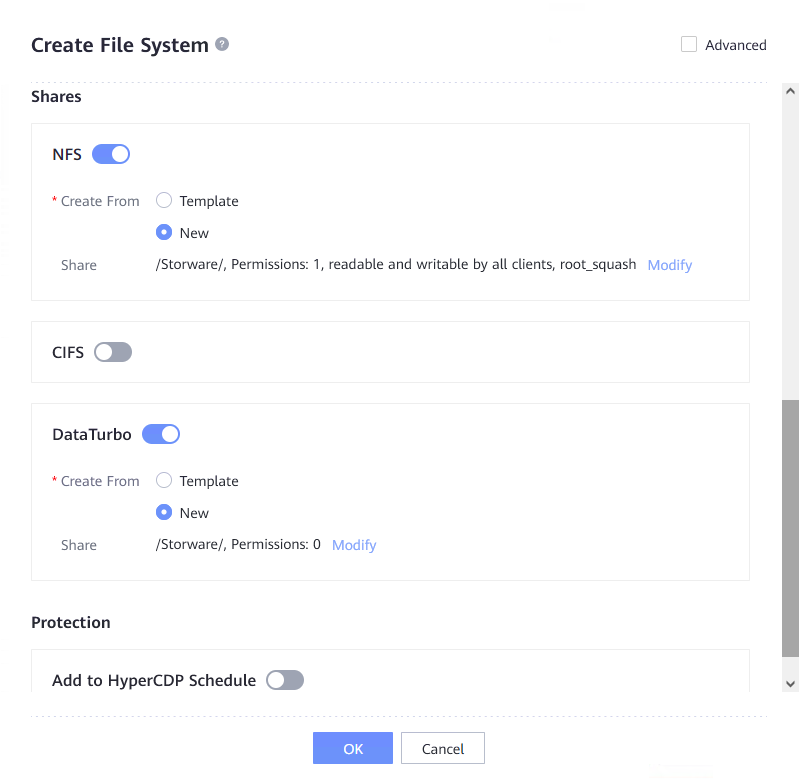
- Fill:
-
On NFS share modify settings:
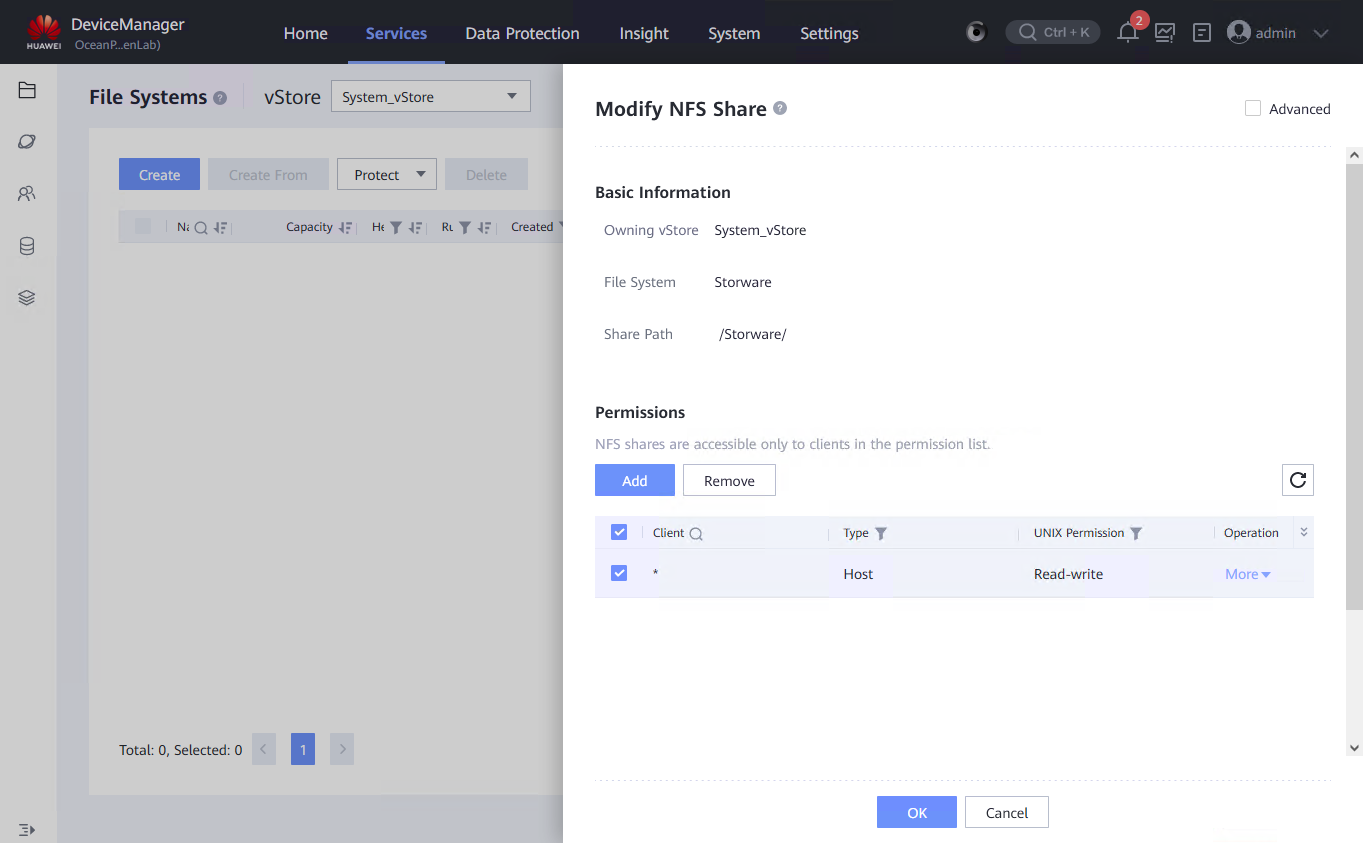
-
In permissions add new client, or modify existing:
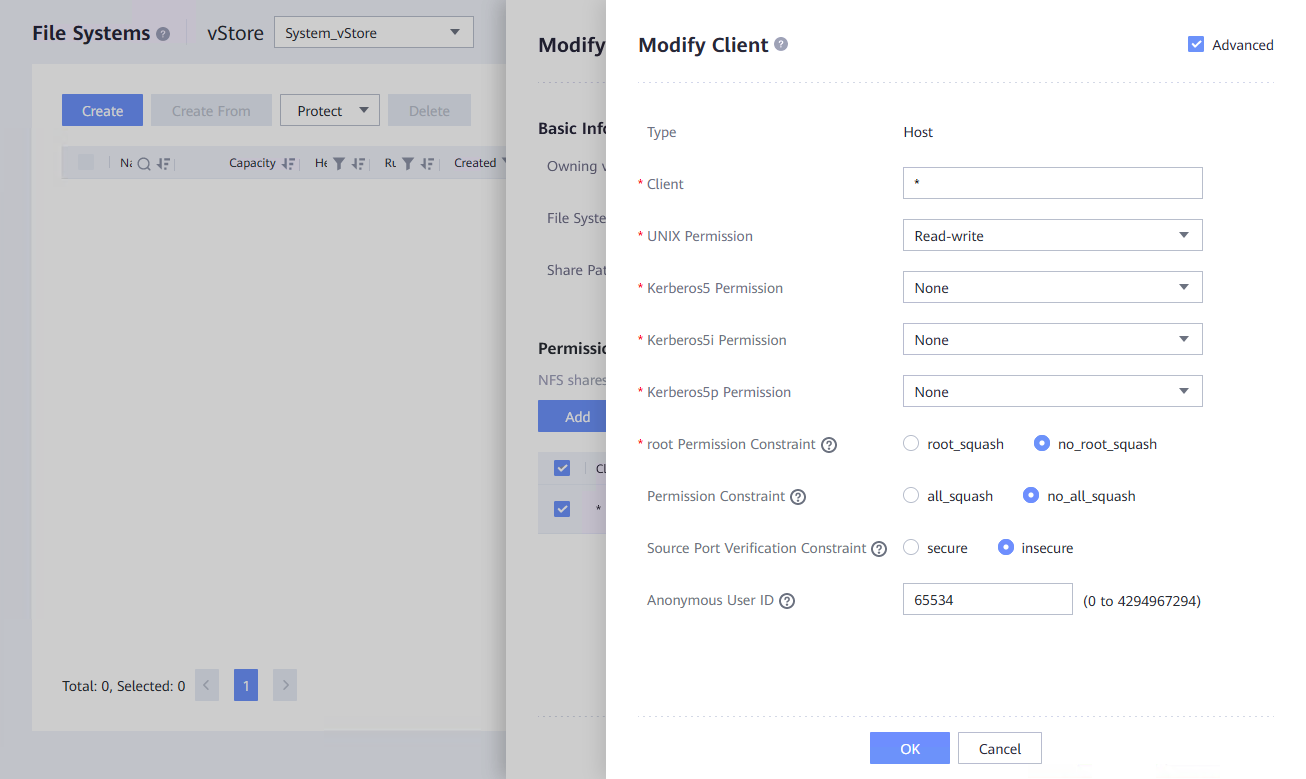
- Client - * , or IP of vPlus node machine
- root Permission Constraint - no_root_squash
-
Save settings and modify DataTurbo share:
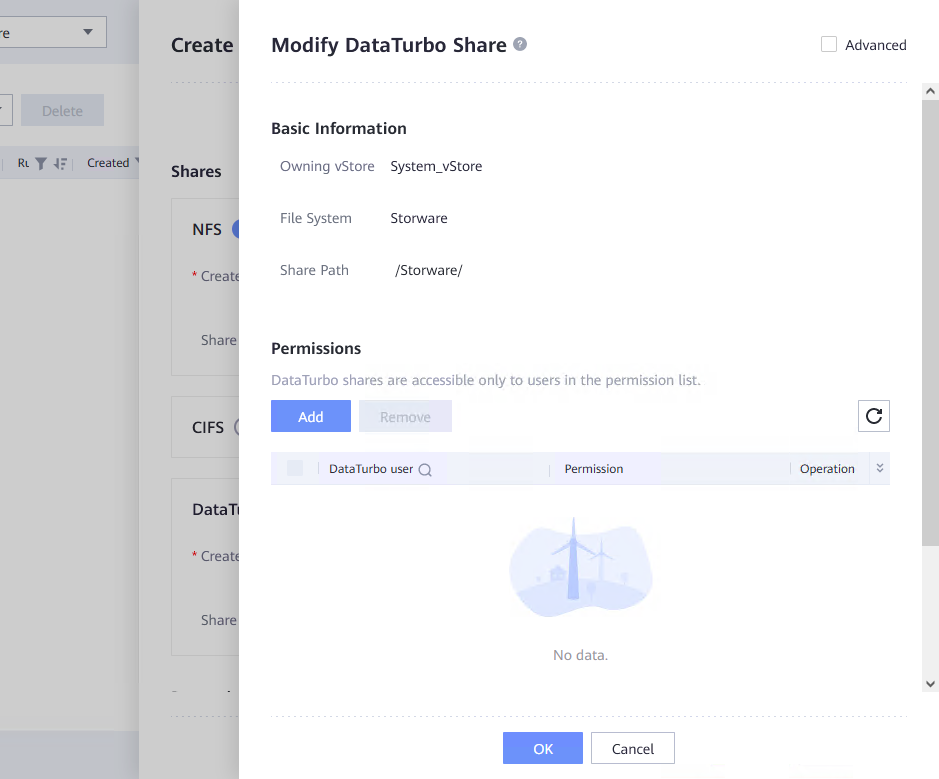
-
In Permissions add user to share:
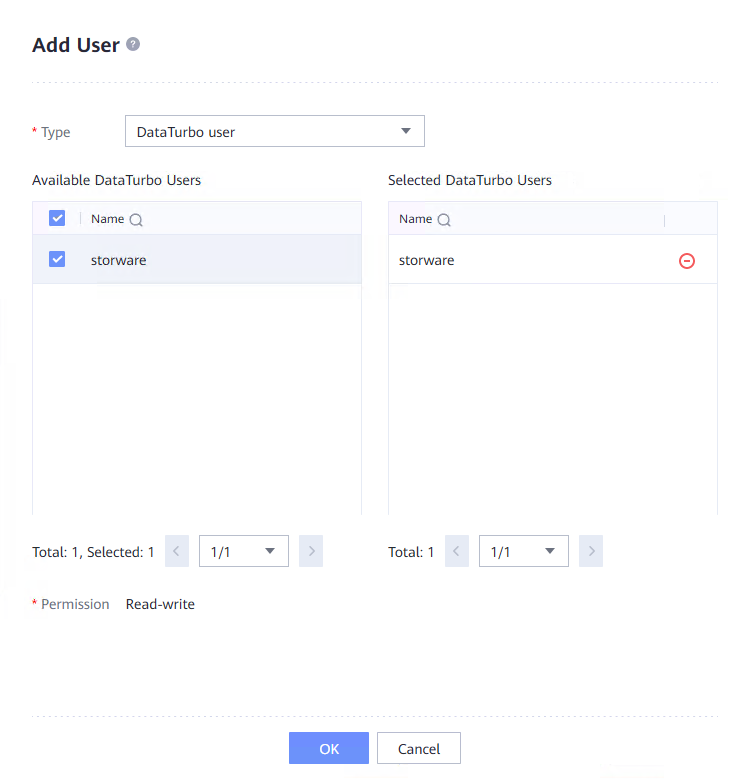
Mount NFS share
-
In vPlus Node, mount NFS share which was created in previous step:
mount OceanProtectIP:/vPlus /vprotect_data -
Go to the Create File System Backup Destination section to learn how to create backup destination.
Mount DataTurbo share
DataTurbo share is possible for mounting only in CentOS/Red Hat 7.
-
Install DataTurbo package in vPlus Node:
unzip OceanStor_DataTurbo_1.0.0_Linux.zipcd OceanStor_DataTurbo_1.0.0_Linux/
chmod a+x install.sh
./install.shcd OceanStor_DataTurbo_1.0.0_Linux/
chmod a+x install.sh
./install.sh
<!-- Preparing... ################################# [100%]
CUSTOM_USER=dataturbo
begin to create dufault user[dataturbo] and group[dataturbo] ......
Updating / installing...
1:dataturbo-1.0.0-202211151736 ################################# [100%]
The DataTurbo client supports three performance levels: high, medium, and low. A higher level consumes more memory and CPU, you can use cgroup
command to limit the CPU usage of the DataTurbo process. The current remaining memory of the system is 4 GB. You are advised to select
level 1(recommended) or lower. If the level selection process stops abnormally, the recommended level will be used.
<0>--Select Default Level. The recommended level will be used.
<1>--Select Low Level. It is estimated that at most 4 GB memory is consumed.
<2>--Select Medium Level. It is estimated that at most 6 GB memory is consumed.
<3>--Select High Level. It is estimated that at most 12 GB memory is consumed.
please input your selection:0
your selection is [0]
install dataturbo succeed. --> -
Start DataTurbo service
systemctl start dataturbosystemctl start dataturbo
systemctl status dataturbo
<!-- ● dataturbo.service - dataturbo
Loaded: loaded (/usr/lib/systemd/system/dataturbo.service; enabled; vendor preset: disabled)
Active: active (running) since śro 2023-01-25 15:32:21 CET; 4s ago
Process: 18488 ExecStart=/opt/oceanstor/dataturbo/script/start.sh (code=exited, status=0/SUCCESS)
Main PID: 18558 (dpc)
Tasks: 95 (limit: 65535)
CGroup: /system.slice/dataturbo.service
└─18558 /opt/oceanstor/dataturbo/bin/dpc
sty 25 15:32:20 localhost.localdomain systemd[1]: Starting dataturbo...
sty 25 15:32:21 localhost.localdomain su[18660]: (to dataturbo) root on none
sty 25 15:32:21 localhost.localdomain su[18751]: (to dataturbo) root on none
sty 25 15:32:21 localhost.localdomain systemd[1]: Started dataturbo. --> -
Create DataTurbo storage object, with DataTurbo user
dataturbo create storage_object storage_name=vPlus ip_list=OceanProtectIP[root@localhost ~]# dataturbo create storage_object storage_name=vPlus ip_list=10.30.0.66
Please input username:
vplus
Please input password:
********
Create storage object successfully. -
Check if storage is created
dataturbo show storage_objectdataturbo show storage_object
<!-- Storage Name: vPlus
User : vplus
Ips : 10.30.0.66
IpPair :
ID Local Address Remote Address Status
---------------------------------------------------------------
1 10.30.1.242 10.30.0.66 Normal --> -
Create mount directory, and mount DataTurbo share
mkdir /vprotect_data
dataturbo mount storage_object storage_name=vPlus filesystem_name=/vPlus mount_dir=/vprotect_data -
Check if share is mounted:
df -hT
<!-- Filesystem              Type            Size  Used Avail Use% Mounted on
devtmpfs                devtmpfs        2,6G     0  2,6G   0% /dev
tmpfs                   tmpfs           2,6G  8,0K  2,6G   1% /dev/shm
tmpfs                   tmpfs           2,6G  8,7M  2,6G   1% /run
tmpfs                   tmpfs           2,6G     0  2,6G   0% /sys/fs/cgroup
/dev/mapper/centos-root xfs              17G  1,7G   16G  10% /
/dev/sda1               xfs            1014M  181M  834M  18% /boot
tmpfs                   tmpfs           523M     0  523M   0% /run/user/0
tmpfs                   tmpfs           523M     0  523M   0% /run/user/1000
/vPlus fuse.dataturbo 8,0T 0 8,0T 0% /vprotect_data --> -
Grant privileges for vprotect user
chown vprotect:vprotect -R /vprotect_data
Create File System Backup Destination
Only regular File System Backup Destination is currently available.
- Go to Backup Destinations.
- Click on Create Backup Destination, choose a File system.
- Type the name for the new backup destination and select at least one node configuration.
- In Storage paths type
/vprotect_data/backups, where you point to a subdirectory in your staging space, where vPlus will store the backups. - Save the configuration.